Fix Fake-Looking AI Product Photos: 7 Prompt Fixes for Seedream V5 Lite
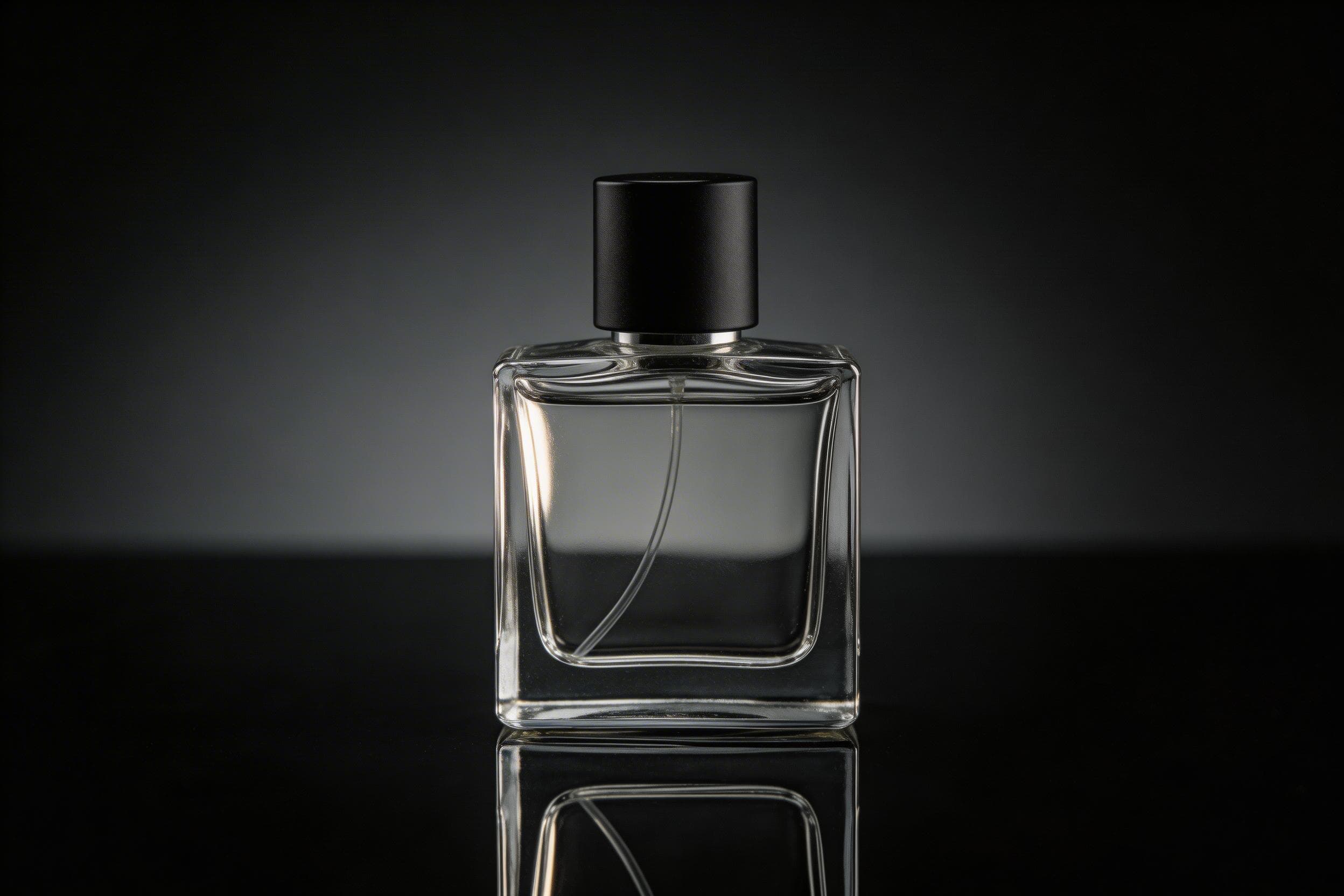
Fake-looking AI product photos kill trust fast. This guide shows how to fix fake-looking AI product photos with a few prompt changes in Seedream V5 Lite.
Why AI product photos look fake
Most “AI packshots” fail for the same reasons:
- Surfaces look too smooth. Everything turns into plastic.
- Shadows look like a soft gray blob. The product starts to float.
- Glass and chrome reflections warp. Highlights jump to the wrong places.
- Labels turn into unreadable text. Edges melt around the typography.
The fix starts with one idea: tell the model what a real camera would capture. Then add a few controlled imperfections.
Test setup (Seedream V5 Lite)
- Model: Seedream V5 Lite
- Mode: text-to-image
- Resolution: 2K
- Aspect ratio: 3:2
- Max images: 1
- Watermark: off
Before/after: two prompt fixes that changed the result
Fix #1: Add microtexture and ban the CGI look
Generic prompts often produce a “perfect” jar. It looks clean, but it reads as CG.

The fix adds real photo language and small physical details. The goal: believable material and lighting, not a sterile render.

Fix #2: Control reflections for glass products
Glass fails when the prompt does not control the light source. The model invents highlights and bends the refraction.

The fix names one lighting setup. It also bans common failure modes.

7 prompt fixes to improve realism (copy/paste)
| Problem | Prompt fix | Why it works |
|---|---|---|
| Plastic surfaces | Add: “real DSLR photo, not a 3D render” + “subtle micro-scratches” + “mild film grain” | Forces a photographic look and breaks the perfect CG sheen. |
| Floating product | Add: “natural cast shadow” + “contact shadow under the base” | Anchors the object to the surface. |
| Bad specular highlights | Add: “one large softbox above-left” (or above-right). Keep it single-source. | Gives the model one consistent lighting story. |
| Warped glass | Add: “accurate refraction” + “crisp edges” + “no melting glass” | Pushes the model toward clean geometry and stable optics. |
| Messy labels | Use: “blank label” or “no readable text”. Add text later in design tools. | Prevents the model from inventing broken typography. |
| Over-sharpened look | Add: “slight film grain” + “natural lens softness” | Reduces the harsh AI edge halo. |
| Too many extras | Add: “single product only” + “no extra objects” + “clean background” | Keeps composition stable and commercial. |
Settings that matter for eCommerce shots
Resolution and ratio do more work than most people expect.
- Use 2K when the image will sit on a product page. Small details stay clean.
- Pick 3:2 for hero images. It fits blogs and landing pages well.
- Use 1:1 for marketplaces and catalog grids.
- Turn watermark off for ad testing workflows.
Workflow: turn the best still into a short ad clip
A simple workflow converts better than a random video prompt.
- Generate 4-8 still variations in Seedream V5 Lite.
- Pick one winner with clean shadows and believable material.
- Animate it in a video model with one camera move: slow push-in or orbit.
Related reads:
FAQ
Should text appear on labels in the prompt?
For ads, avoid it. Use a blank label and add typography later. The result looks cleaner.
What is the fastest way to stop the “AI plastic” look?
Add three phrases: “real DSLR photo, not a 3D render”, “subtle imperfections”, and “mild film grain”.
Which lighting words help the most?
Pick one light source and name it. “One large softbox above-left” works well for glass and metal.
CTA
Run these prompt fixes on seedance2pro.video. Keep one variable per iteration. The winner becomes the still for the next video ad test.
Seedance 2.0
Transform your images into stunning AI-generated videos with the most advanced video generation model.
Try Seedance 2.0 Now